Showing posts with label Technology. Show all posts

10 Literacy Websites that You'll Be Glad to Know *Before* School Starts

06 April 2019 / 14 comments
Looking for safe and effective literacy websites you can use with your students? Then check out this post on Classroom Tested Resources. These sites are classroom tested and approved, and nearly all are FREE.

Hello and happy Monday to you!  Carla from Comprehension Connection here today to share some of my favorite websites. Now, I am not one to choose a website that kids stare at mindlessly, but rather, I want go-to websites that will help me with modeling the skills my kids need.

The first site I want you to know about was one shared with me during my reading program.  It's perfect for small group lessons and tutoring.  If you visit the section for educators and navigate to your grade level you will find many lessons and manipulatives to print and take to your students for *free*.
The number two website is perfect for articles to match your content areas as well as other literacy skills.  It includes paired text, novel studies, and a large number of leveled articles with comprehension questions. Sometimes students need a second or third "dose" of content information, so check it out for informational text tied to your content.
Do you need help with building vocabulary?  This past year, I was looking for Greek and Latin Roots, and this site popped up as I searched.  I love the options it has.  It's great for modeling, but I can see student using it at home or during independent work time.
If you use reading/writing workshop for your students, you'll just love this fourth website. It is truly one of the best on the web. It has lessons focused on the Six Traits, but many of the lessons also reinforce comprehension as they encourage making predictions, visualizing, character traits, and certainly story structures.
Whether your students are beginning readers, transitional readers, or instructional readers, you will love being able to use this site for modeling. Reading A-Z is most definitely worth the annual membership fee for the wealth of information and materials available. It costs about $90 for a year's membership which provides projectable books you can use with Smartboard tools for Close Reading and to model decoding and word building.  I wrote up a blog post about the ways I use Reading A-Z for Adventures in Literacy Land. If you want more information on that, you can check [here].
The next site I am sharing has apps for students and many lesson ideas for teachers. I could spend hours searching through what all is on this site. I especially love the student apps for word building, the project options, and written response apps.  
Having a wide repertoire of instructional strategies helps teachers keep things fresh and discussion deep. Reading Quest was started by Raymond Jones at the University of Virginia for content area instruction, but there are great strategies that work for nonfiction and fiction listed.  Each strategy is explained and  a plain-jane version of the organizer is shared.  
Many teachers enjoy using nonfiction text that is current and directly related to what students are learning in class. Newsela is a new site that features nonfiction current event printable and online articles that are free for educational use. Students can take quizzes on the articles, and teachers can observe their progress.
This next site is a great one for use at school or at home.  Oxford Owl has wonderful parent videos, interactive educational games, and 250+ stories for students.  It's even set up for tablets.  
The last website I'm sharing has been around for the past 10-15 years, but it may be unknown to teachers who are just beginning. I like it for introducing and modeling specific skills such as dictionary usage, sequencing information, or synonyms and antonyms. Teachers can select a grade level and skill needed and find mini lessons to project for use with small group or whole group. If laptops are available, the activities could be used for review as well.
As I wind this post up, I realize I think I could have added another ten to fifteen more.  If you have a favorite literacy website teacher need to visit, could you please add it with the linky code below? 

Enjoy the rest of your summer, friends, and see you next month!

Read More...

5 Easy Ways to Encourage Self-Selected Reading

02 February 2019 / Leave a Comment
5 Easy Ways to Encourage Self-Selected Reading | Encourage students to "just read" by introducing new books & providing opportunites for students to recommend books to one another. | Chalk & Apples

One thing all teachers can agree on is that students need to read. We give them self-selected reading time during class. We assign 20 minutes of reading for homework. We encourage reading every chance we get, but sometimes we run out of ideas. Here are a few things that are working well to get my students excited about reading!

Read More...

A Tall Tales Project Your Students Will NEVER Forget

29 January 2019 / Leave a Comment
Do you teach your students about tall tales? Check out this fun way to wrap up a unit by having your students write their own tall tale and turn it into a TALL masterpiece. Free Google Doc & Word template included for students to type their stories!

Do you teach Tall Tales?

One of my favorite ways to wrap up a tall tales unit is having students write their own tall tale and publishing their stories as TALL creations. I first discovered this incredible idea from Layers of Learning who provides wonderful resources for the activity in THIS blog post. Since then, I have seen many similar tall tale creations all around Pinterest. Therefore I am not sure who exactly to credit for this adorable activity!
Read More...

5 Chrome Extensions that Support Digital Comprehension

29 September 2018 / Leave a Comment
Many studies suggest that reading comprehension may suffer when students read on digital devices that are dramatically making their way into the classroom. Yet, teachers are still expected to integrate technology into their lessons. Teaching comprehension with the good ol' paper book is a challenge in itself. Therefore, how are we supposed to support such a vital reading component when technology is involved?
5 Chrome Extensions That Support Digital Comprehension

Read More...

TEACHERS, RELAX...While Building Your Personal Learning Network (PLN)

26 April 2017 / Leave a Comment
Have you begun making your summer plans? Are you taking a fun trip or just relaxing at home? Well, you can still relax this summer while learning and making connections. I have a few tips in building your personal learning network (PLN) while you're relaxing on the beach.

Have you begun making your summer plans? You can build your personal learning network while still relaxing. In this post, I have some tips that will help you continue learning and having fun.

Read More...

5 Websites for Teaching Problem-Solving

27 December 2016 / 1 comment

In this post, I've provided different websites that teach problem-solving and higher level thinking skills. Students will love these games.

Problem solving is an essential skill in teaching math and other subject areas. In fact, this is a skill that needs to be taught in early grades. It leads to students learning to ask questions and apply mathematical concepts in solving problems. Creating a classroom culture of problem-solvers is an important element in developing 21st Century learning. In turn, this prepares students for real-life situations and the job market.

Read More...

7 Activities to Make Math Fun

02 October 2016 / Leave a Comment
7 highly engaging activities to make math more fun for upper elementary students

Math. Some of us love teaching it. Some of us hate it. The same is true for our students. But no matter how we feel about it, we have to teach math. And we all know that it's easier and more enjoyable for everyone if we can get our students excited about what they're learning. Fortunately, there are lots of ways to make math fun for even your toughest students. Today, I'm sharing some of my students' favorite math activities.
Read More...

4 Resources in Teaching Digital Citizenship and Cyber Safety

18 August 2016 / Leave a Comment
If you're in need resources for teaching digital citizenship and cyber safety, I've provided 4 online resources for you.

Does your district provide a technology plan for teaching Digital Citizenship and Cyber Safety? Or, are your teachers responsible for teaching students responsible behavior when using technology? Many teachers have no idea of what and how to weave ethical technology behavior into their curriculum. And, many parents do not monitor their children when they are online at home.

Read More...

Digital Learning: How to Do It Justice

11 July 2016 / Leave a Comment

"Digital Learning"

Seems to be one of the biggest buzzwords in education recently. 

But... what does it actually mean?  
Putting kids in front of a device and expecting results?  Not any more.  
My hope is that by the time you're finished reading this blog post you've got a better understanding of digital learning and how to do it justice in your classroom.

Just a bit of background...

In 2010, at the National Summit on Education Reform in Washington DC, a council defined 10 elements of "high quality digital learning".  Some of these were aimed at lawmakers, but some can be used to help teachers make more informed judgments for teachers classroom.If you want to learn more about digital learning click here, but for sake of time, I am focusing on three important elements of digital learning. You should ask yourself these questions when you're trying to implement digital learning.

Quality Instruction:  "Am I presenting this in an engaging and helpful way?"

Gone are the days of sitting a kid in front of a device and expecting them to be mesmerized and engaged for hours on end.  I can remember a time where my teachers would take us into the computer lab and hand us a real life floppy disk (showing my age here...) and our little happy bodies stayed focused for the whole hour.  Fast forward some 10+ years and now I'm trying to keep my own students engaged with what I'm teaching.  I have more technology than I can shake a stick at, but technology is no longer the carrot that can be dangled.  These kids are exposed to technology before they can read and sometimes before they can walk. As educators we have to believe that no longer is technology a transformational tool, but more of an adaptive tool to create change.  
So you must ask yourself: 
"Am I presenting this information in an engaging and helpful way?"
Stop the boring PowerPoint slides for lecture notes.  Try making your own videos or even engaging your students into creating their own presentations.  
Stop having your students turn in boring worksheets and try out using Google Forms.
Stop the ban on devices and try utilizing them intentionally.

Quality Content: "Is the content of this app/program engaging and important?"

What are you teaching?  How to write a paragraph?  Multiplication fact practice?  The impact of WWII on present day? There's probably an app for that.  But, is this app going to be the right way of presenting that information?  Are you choosing the right tool for the job?  

To make an analogy here, we teachers are like construction workers.  We have the task of creating learners that will be facing a future we can only predict. And much like construction workers, we have a vast array of tools at our hands when it comes to technology.  But we must remember that tools are only good for specific jobs.  For example, a hammer does no good when you need to screw something into place.  

So go back to the original question... 
Is content of this app/program engaging and important? 
Really analyze your purpose for it before choosing. 
Ask yourself: 
Does it provide quality information?  Does it push my student's thinking to a deeper understanding?
Or
Is it just a shiny new tool that won't work for this job?

Quality Choices:  "Can each of my kids access this in multiple ways?"

We're taught as educators that we serve students from differing backgrounds and to be prepared to teach in a variety of ways.  Why not then, allow the students to access their education in multiple ways?  Most schools have some form of technology they provide students with in the classroom.  Unfortunately too many times are teachers too busy, too afraid, or too underprepared for utilizing it in the classroom.  Don't be that teacher.  Get your hands on it and try out the device yourself.  

Think about giving your students choices about how to respond to the lessons you teach in a variety of ways and with options for technology.
  • Allow students to use QR codes as a means of self-checking their understanding of the content.
  • Allow students to research a topic and use their findings to create a video that teaches younger students.
  • Allow students to create augmented reality experiences to go along with stories they're writing in class.
  • Allow students to respond and summarize the class reading using a classroom hashtag and creativity.  

Digital learning is at your fingertips and can be utilized in SO many different ways.  We only need to ask ourselves the right questions in order to do it justice in the classroom.

Read More...

DIY Personalized Photo Desktop Organizer

05 July 2016 / 10 comments

Do you want to learn how to create your own
personalized photo desktop organizer? 

Hey, friends! It's Beth from Adventures of a Schoolmarm, and I have to let you in on a little secret. I can't stand a messy computer desktop! I also love being able to have a personalized photo on my desktop because I am picture obsessed. I started using a custom desktop organizer a couple years ago to help me stay organized and have easy access to my files. If you want to learn how to create your own custom desktop using a meaningful photo, this tutorial is for you!

Learn how to make a personalized desktop organizer for your computer wallpaper with this quick and easy tutorial. Create custom wallpaper using your favorite photos! // Adventures of a Schoolmarm on Classroom Tested Resources
Read More...

Too Cool to Think About School....Just Cool Apps

22 June 2016 / Leave a Comment


Yeah I'm right now I'm feeling "too cool to think about school".  I'm 14 glorious days into my well deserved summer vacation.  Vacation seems like the wrong word though.  We have all earned these days---so enjoy them!!  Who am I kidding though?----we all still think about school!!!  Summer gives me a chance to catch my breath and "think" about the coming school year. 

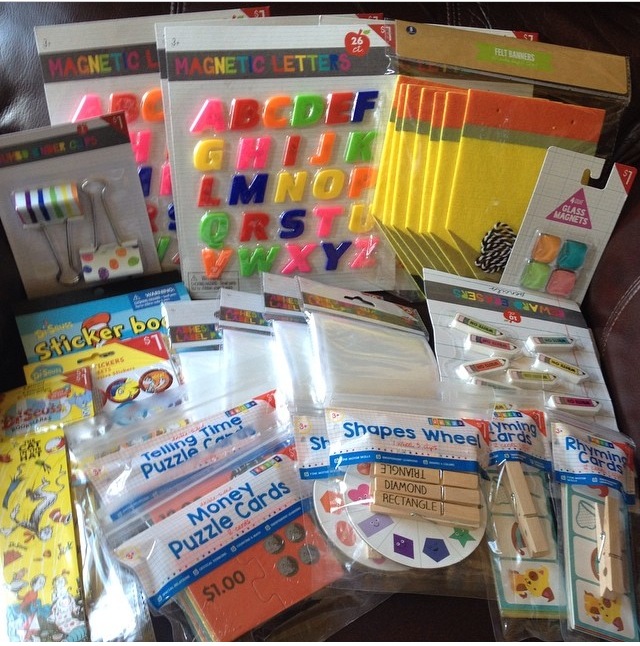
       Although, I have hit up my favorite spot to gather much needed supplies and ideas for next year. 
      Use #targetteachers  and #dollarspot on Instagram to follow more great finds!!!
I can't wait to add these little gems to my word work and math stations


Now onto the cool apps!!

  I would like to share my favorite apps to use during guided reading and even math!! 
I personally use all of these apps with my second graders on a daily basis. Our favorites include Reading Eggs, Brain Pop Jr., Math Blaster, and Sumdog.

            
I've put them all on Favorite Ipad Apps link for convenience.


On a different note I am getting so excited for TpT Orlando!!  
Use #tptorlando16  and  #findmeattpt on Instagram to follow all the fun!
I can't wait to see my CTR friends again this year-missing some others!
Comment below if you'll be there too- I'd love to connect with you!

Happy Summer Everyone!!


Read More...

Facebook Tips for Teacher Bloggers

20 June 2016 / 2 comments
I want to start this post with a disclaimer:  I AM SO NOT AN EXPERT.  I "don't know nothing" really- especially when it comes to blogging and social media, as far as being an expert goes. So this is just a few things that I do to help me as a blogger.

Whew.

That feels good to get that off my chest.

So... I should probably rambling and get to the point.  See? So not an expert blogger!


I know many of you guys that blog, also have a variety of social media accounts to share your blog posts and such. Today I am going to focus on Facebook, scheduling posts, and getting yourself organized as a blogger, the easy way.


Why use Facebook?
I have a love/ hate relationship with Facebook.  I get frustrated because I  don't think some of my posts have had enough views.  Finally, I have told myself to get over it.  Even if only 31 people see my post, that is 31 more people that would have seen it than if I had done nothing.  It only costs me my time. It is just a personal decision.


How often should I post?
At one time I was told that you should only post to Facebook once a day.  Apparently, this is because Facebook stops showing posts to your views once you post a new post.

I personally don't find this to be true.  I feel that most of my Facebook posts have a natural "shelf life" and only get views for a few hours.  Maybe some types of posts like memes and shares might get more views over a longer period of time.  However, any posts that I write and publish simple only get responses for about 2-3 hours.

This is all a personal decision and it changes ALL the time as Facebook makes changes.

When should I post?
I find that I can post 2-4 times a day and some will do well and others won't.  No rhyme or reason. The best way to figure out when you should be posting to Facebook is by looking at your Facebook Insights. If you click on posts, it will show the best times and days to post.


How do you find the time to post?
Um, well, see I don't.  I have really odd times for scheduling on Facebook and pinning on Pinterest. I really like when I can sit down for a good 30-45 minutes and focus on one task.  If not I am like that dog in Up.

I also utilize the scheduling feature.  This is my FAVORITE Facebook offers.  I can sit down and schedule TONS of posts all through the month.  Yep, I exposed my "secret." Often I am not even on the computer when  my Facebook posts pop up in your feed!

Want to learn how to schedule? I made this quick little video.


How do you find the content to post?
Now you know a quick way to post so you don't have to chain yourself to the computer.  So, what DO you post? This is my FAVORITE little trick. Once I figured this out, I wanted to hug my computer! It is a huge time saver!

First, I suggest that you make sure you follow several quality teacher Facebook pages.  Ones that really share good, quality content that catches your eyes. I am also part of a few Facebook groups that also share some great articles.  This will make it easier to find good content, because it will just pop up in your feed each night when you are browsing Facebook for fun!

I made this video to show how to use the save link feature to make scheduling a breeze.   Don't know what I am talking about?  Check out this little video!


How do you stay organized with scheduling posts?


I find it easiest to sit own and schedule posts all at one time.  As I post, I will mark it off on my blogging calendar.  This way I know I have posted on the appropriate dates. 


Tehre are all kinds of extras to keep a blogger organized, such as data tracking and a list of possible tax deductions!


You can check out my blog planner on TpT.  Purchase it once and get updates for LIFE!

If you are looking for more blog organization ideas, you can check out this blog post!  I hope this helps keep you organized!


Read More...

Summer Scavenger Hunt - Exploring Your City

16 June 2016 / Leave a Comment
Students can enjoy this Summer Scavenger hunt with their family or as a class assignment. Have fun "Exploring Your City."

Living in a city has its advantages. There are so many interesting cites to see. Ones that you just don't have time visit during the school year. A summer scavenger hunt is a fun activity to do as a family or students to do as a summer assignment. Many students don't have an opportunity to travel, so this is a great "Staycation" activity. My granddaughter had this assignment before the end of the year. We hurriedly traveled around Austin taking pictures for her scavenger hunt. Because we were so rushed to complete the assignment, we didn't have time to really explore each location.

To take the scavenger hunt a step deeper, try using Google Earth with the activity. Students can share photos of themselves at a landmark plus students can travel to the location using Google Earth.

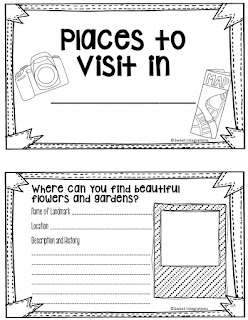
I suggest that you have a list of 10 different places for your students to visit. You can keep the questions open ended so your students aren't taking pictures of the same location. Also, give the opportunity for students to be creative. For example: Where is your favorite place to swim? Most students' answers will be different.

Students can enjoy this Summer Scavenger hunt with their family or as a class assignment. Have fun "Exploring Your City."

Students can enjoy this Summer Scavenger hunt with their family or as a class assignment. Have fun "Exploring Your City."

For more information on creating a Google Tour or Scavenger Hunt, visit my Sweet Integrations website. (These are steps in creating a Google Lit Trip, but you would do the same thing for a tour or scavenger hunt.)

Students can enjoy this Summer Scavenger hunt with their family or as a class assignment. Have fun "Exploring Your City."
These cute Polaroid photo frames are created by our own Anita Goodwin.

And, don't forget to download your free booklet for your scavenger hunt. 

Students can enjoy this Summer Scavenger hunt with their family or as a class assignment. Have fun "Exploring Your City."


Read More...

From Games to Presentations

08 June 2016 / Leave a Comment
More than just games!  Purposeful technology in primary!

Do your students enjoy using iPads and tablets in the classroom?  I know mine do, but I struggle with making sure that my students are using technology in purposeful ways.  Game Apps are great for practicing sight words and math facts, but I have been searching for authentic uses in my first grade classroom!

Last year I discovered Haiku Deck!  It is a free app that enables students to create a slide show and share their learning in a meaningful way!  This particular app has a search feature that identifies key words in sentences and then offers image choices.  Students can also search for images, AND the images are SAFE! Thank.You.Very.Much!

I can allow my students to work independently without worry!    


This year we used the Haiku Deck app to enhance our rain forest animal research! My students chose an animal to research, completed a research organizer, and wrote a rough draft. We edited the rough draft together and then they began the final copy...their slide show! 


In order for the kids to access their own "decks," as well as,  each others, I created QR codes for the classroom.  Students loved using the iPads to scan each others projects! There are many free QR Scanner apps available!

Scan the QR code below to look at one of the student's completed Haiku Deck Presentations!  


I hope you'll give this app a try in your classroom and discover a purposeful and authentic use of technology in the primary classroom!


I'd love to connect with you over at my blog friendlyfroggies.com or my Facebook page!
Read More...

6 Must Try Classroom Tech Tools

02 June 2016 / Leave a Comment
6 "Must try" classroom tech tools for your elementary classroom | Chalk & Apples on Classroom Tested Resources
Classroom technology tools are constantly changing, and sometimes it's hard to know where to start when you want to try something new.  This year, I've tried lots of new tools, and today, I'm sharing some of my favorites...
Read More...

5 EASY End of the Year Technology Activities

29 May 2016 / 6 comments

5 EASY End of the Year Technology Activities

Do you need some E-A-S-Y techie activities to help wrap up the end of the year? Here are 5 quick projects you can carry out with your students as they reflect on the MEMORIES they made this past year.
Have students create memory posters using the free website PosterMyWall. You do not have to login! Click "Start New" and begin creating with all of the fun and colorful backgrounds, clipart, word art and fun fonts that are provided. I like for the kids to start from a blank poster instead of choosing a template. The interface is super easy to use and very intuitive. You can even upload your own pictures!

Use the free website, PosterMyWall, to create end of the year memory posters.


A few years ago I saw the CUTEST idea on Pinterest. I wish I could give credit to the original creator but I saw it in so many different forms. Simply take pictures of students holding their arm out as if they are holding a balloon and "flying away". Print and have them cut out their bodies. They can attach a paper balloon with a string. Some people have had the pictures hold 3 balloons with a prefix, root word and suffix written in the middle of each balloon. Other projects I have seen involved students writing a small paragraph inside of the balloon. Why not involve a little technology and have your students record themselves reading a paragraph they write about "Soaring into __Grade" and share one of their favorite memories from this past year? Turn their recording into a QR code to paste inside of the balloon.

Create QR code voice recordings about "Soaring into ___ Grade"

Using the website Vocaroo, students can create their audio QR code in a matter of minutes. The simple interface makes this tool a breeze to use, even for kindergartners! All students have to do is click the red record button, read their paragraph and press stop. They press "Click here to save" when finished:
Next, click QR Code:

BOOM! Their QR Code appears on their screen for them to print. Have them cut out their QR code and paste it to their balloon. This makes a cute, interactive bulletin board :)

Take a Trip Down Memory Lane with this Google Slides presentation. This resource makes for a fun end of the year writing activity. Using the directions provided, students will take a selfie, crop to a circular shape and add their face to the car on the cover page. They will advance to the other three slides and write their favorite memory from the beginning of the year, middle of the year and end of the year. At the bottom of each slide are directions that indicate how they can use the search feature within Google Slides to find copyright free pictures to add to their slides that match their sentence(s). Afterwards, have your students practice their public speaking skills as they present their slideshow to the class. Send the link home to parents to view and/or embed on your class blog or website!
FREE End of the Year Google Slideshow: Take a Trip Down Memory Lane
Click the image to take you to this download
Or, have your students create a DIGITAL Memory Book in Google Slides. Check out this no-prep template I have in my TpT Store if you are interested:


If you have taken a bunch of pictures throughout the school year then I highly recommend you letting your students create their own Mixbook Scrapbook. Students can express their creativity on the computer individually or in pairs, pick their own templates and use all of the pictures to recap their wonderful school year. Parents have the option of buying these scrapbooks. There is also an option to grab an embed code and publish them online for FREE! Students can create accounts or you could have them all sign into one account for easy management.

Have students use Mixbook.com to create memory books about their year


Have your students create Compliment Word Clouds using the website Tagxedo. Students can scoot around to each others' computers and type one describing word about that person in the text box. I always have to establish a few ground rules for this:

  • Compliments are intended to be KIND words. Words such as "shy, ugly, loud, etc." may be hurtful so do not type anything that could be perceived as negative.
  • Tap the space bar ONE time after you have typed your word so the next person to visit the computer can start typing their word.
  • No repeats! You need to read through the words before adding your own. It will get more challenging as you visit computers that already have a bunch of describing words typed in.


Afterwards, students return to their own computer to check out all of the compliments they received from their classmates. They can choose what shape they want their word cloud to be and print. Now they have a special keepsake to take home and share with their parents!


Have fun wrapping up the end of the year with your students!

Read More...
Powered by Blogger.
Back to Top